Block editor
Double tap a block, or tap the pencil under its quick knobs, to open its editor.
Header
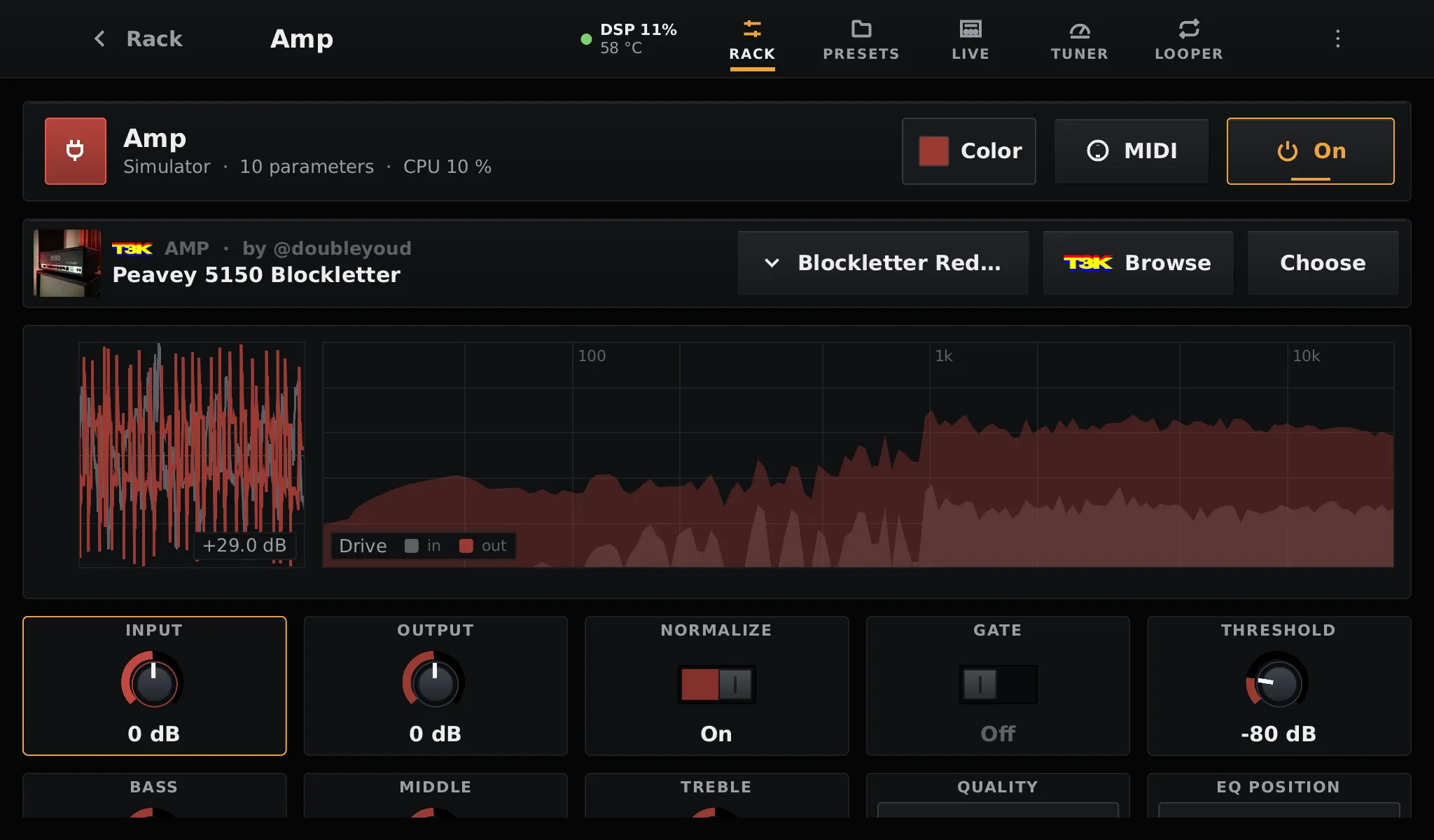
Section titled “Header”- The block’s name, its category, its number of parameters, and the share of a CPU core it uses while it plays.
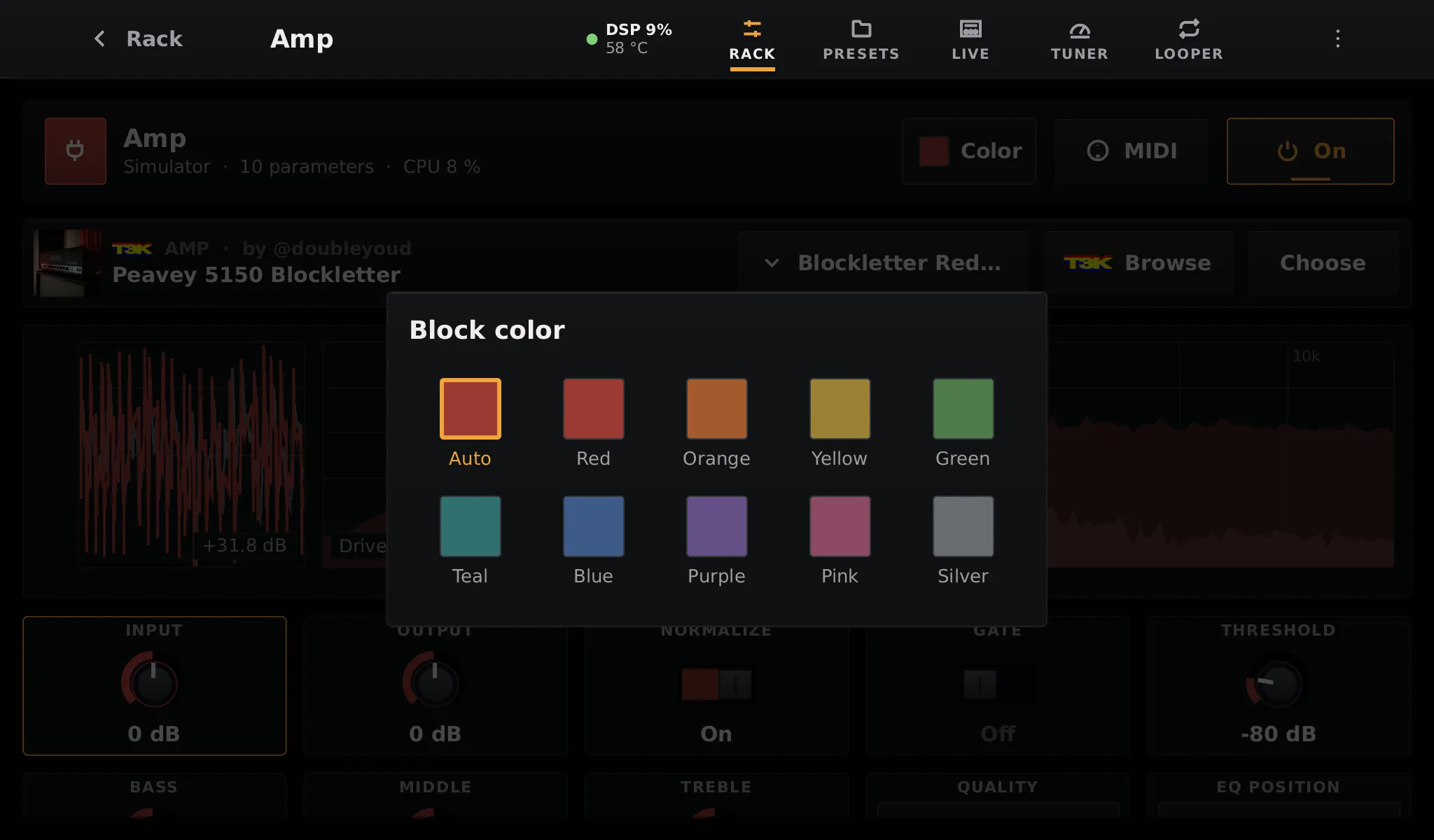
- Color: choose the colour of the block in the rack and on the Live page. Auto follows its family.
- MIDI: learn MIDI controllers for its controls (see MIDI).
- Arrange: the order of the controls and which ones the rack’s knob strip shows (see below). Only on blocks with more than one control.
- On: bypass the block, or turn it back on.
- The bin, at the end: remove the block. The first tap arms it and it turns red with Remove; tap again to remove the block. It disarms by itself after 4 seconds. The rack then offers Undo.
Neural and impulse response blocks have a second line with the loaded model:
- the tone’s picture, its gear, its creator and its name;
- a drop-down with the presets of the tone (the other captures in the same folder);
- Choose, to pick a tone already on the pedalboard.
A list of more than 8 tones or presets has a Search field at the top: type a few words
(5150 red) on the on-screen keyboard to keep only the entries that hold them all.
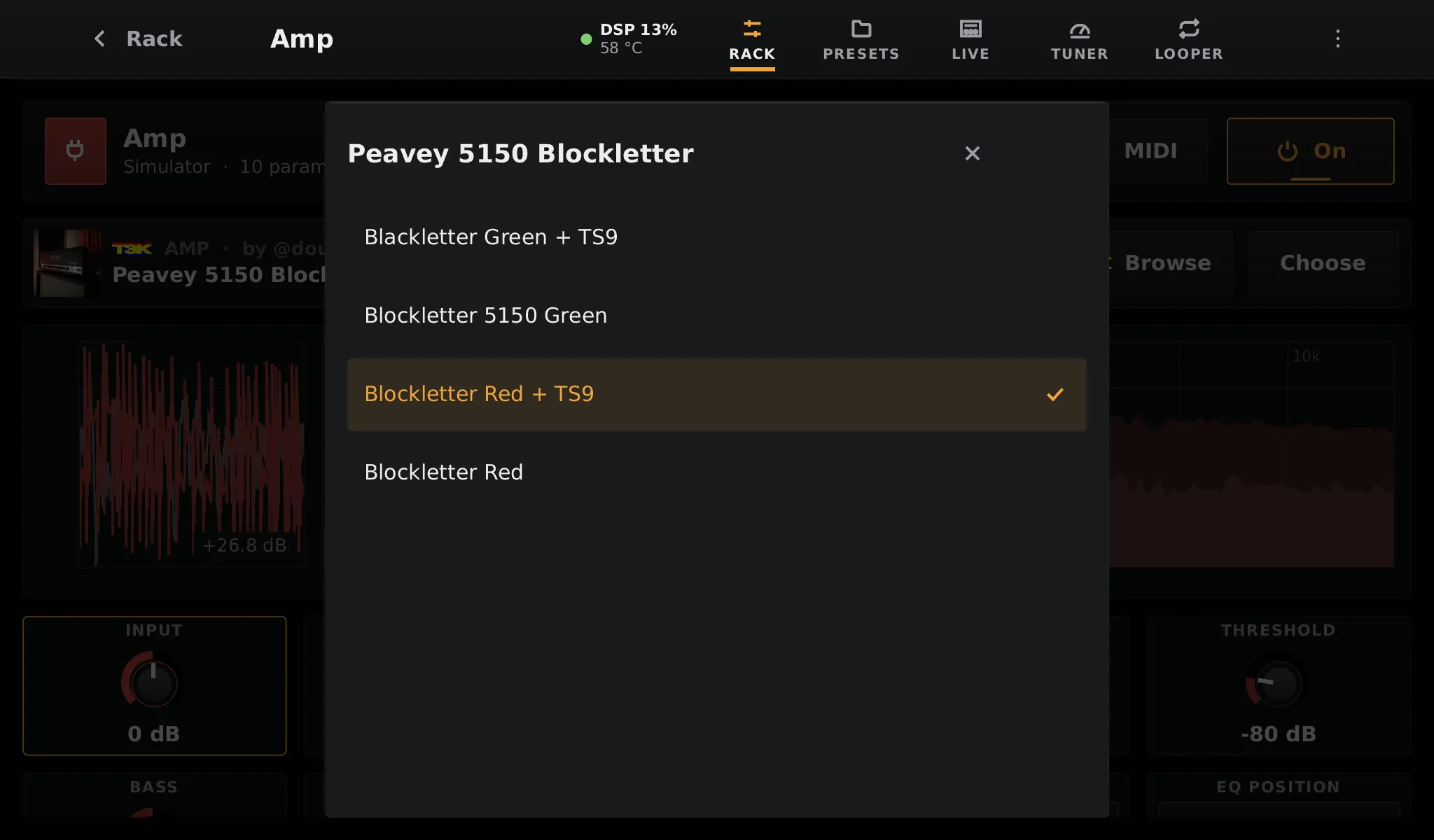
The list of Choose follows the folders of the models folder (see
your own files):
- TONE3000, the first row once your account is linked, opens the TONE3000 library for this block, to find and download tones.
- Folders come first, with the number of tones inside, then the tones of the folder. Tap a folder to open it.
- The row at the top shows the path of the folder; tap it to go back up.
- The list opens at the folder of the current model. A level that holds only one folder is skipped.
- A search looks through every folder.
The file list of an LV2 plugin’s file slot works the same way.
Controls
Section titled “Controls”Knobs turn with a vertical drag. Switches toggle with a tap. Lists open as a chooser. LV2 plugins show the controls their author declared, with their ranges and units.
- Double tap a knob to put it back to its default value.
- Hold a knob without moving to go back to the value before your last change: a quick A/B between the two. Hold again to swap back.
Above the controls of most LV2 plugins, a plugin view draws what the block does: an EQ’s curve, a compressor’s level curve, a delay’s echoes, or the sound in and out. On a small screen (800 × 480), the view folds into a Show / Hide bar when it leaves too little room; hide it to see two rows of controls.
When the controls do not all fit, they go by pages: the arrows on the right show the next or previous row, with the page number in between. A swipe scrolls them too.
Arrange
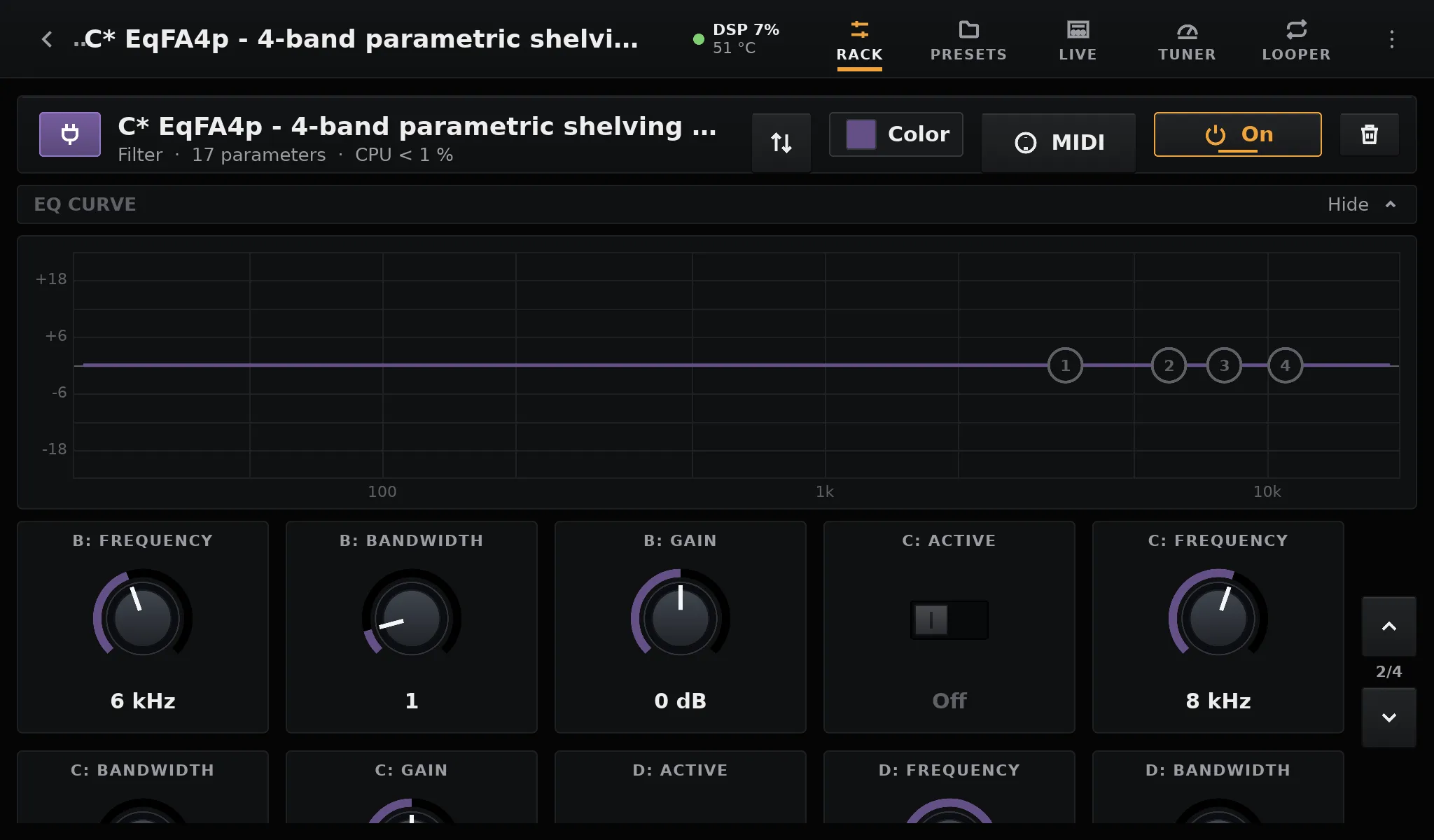
Section titled “Arrange”Arrange sets the order of a plugin’s controls, and which ones show in the rack’s knob strip. Tap it, then on each control:
- ◀ and ▶ move it earlier or later;
- its number puts it in the strip (lit, In strip) or leaves it out (Left out).
Reset goes back to the plugin’s own order, with every control in the strip. Done closes Arrange.
The layout is kept per plugin: every block of the same plugin uses it, in every preset. It survives updates of the plugin.
With the encoder
Section titled “With the encoder”With a rotary encoder, turning goes through the controls, then Arrange (and Reset while arranging), On and the bin.
- Press on a control to adjust it, then turn: a hundredth of the range per click (frequencies move by the same ratio at each click), one step for whole numbers, the next option for lists. The control gets a thicker frame.
- Press again to keep the value, or hold to go back to the value before.
- A switch flips at once on a press.
- On the bin, press twice to remove the block.
- While arranging, each control has two stops: move and strip. Press on move to pick the control, turn to move it, press to drop it. Press on strip to put it in or leave it out. Hold to drop a picked control, or to leave Arrange.
- Hold goes back to the rack.
Colour
Section titled “Colour”